
Design it to be built.
Figma to Webflow: The Handoff Guide for Clean, Scalable Builds
Most Figma to Webflow projects go wrong long before anyone opens Webflow.
The design looks perfect. Then the build starts and the questions pile up. Why is this frame positioned by hand? Which of these four grays is the real one? What happens to this layout on a phone? The developer guesses, the designer redlines, and a two-week build turns into five.
The fix isn’t a better developer. It’s a Figma file that was designed to be built. We design in Figma and build in Webflow every week, including our own site, and this is the handoff process that keeps both sides sane.
🧩 Need a Figma design built properly in Webflow? Let’s make the handoff painless →
Why Figma to Webflow Handoffs Break
Figma lets you draw anything. Webflow has to build it with real HTML and CSS. The gap between those two is where handoffs fall apart.
Designs That Are Drawn, Not Structured
A frame where every element is dragged into place looks identical to one built with auto layout. Until someone tries to make it responsive. Hand-positioned layers have no rules for how they stack, wrap, or resize, so the developer has to invent them.
Values That Only Exist Once
When a file has 14 slightly different font sizes and a new shade of blue on every page, nothing can be reused. Every one-off value becomes a one-off class in Webflow, and the site gets harder to update with every page you add.
Layers Called “Frame 2147”
Layer names feel like a designer’s private business. They’re not. When you sync to Webflow, they become the class names the whole team works with for years.
Set Up Your Figma File for Webflow
A clean build starts with four habits in Figma. None of them are hard. All of them save days later.
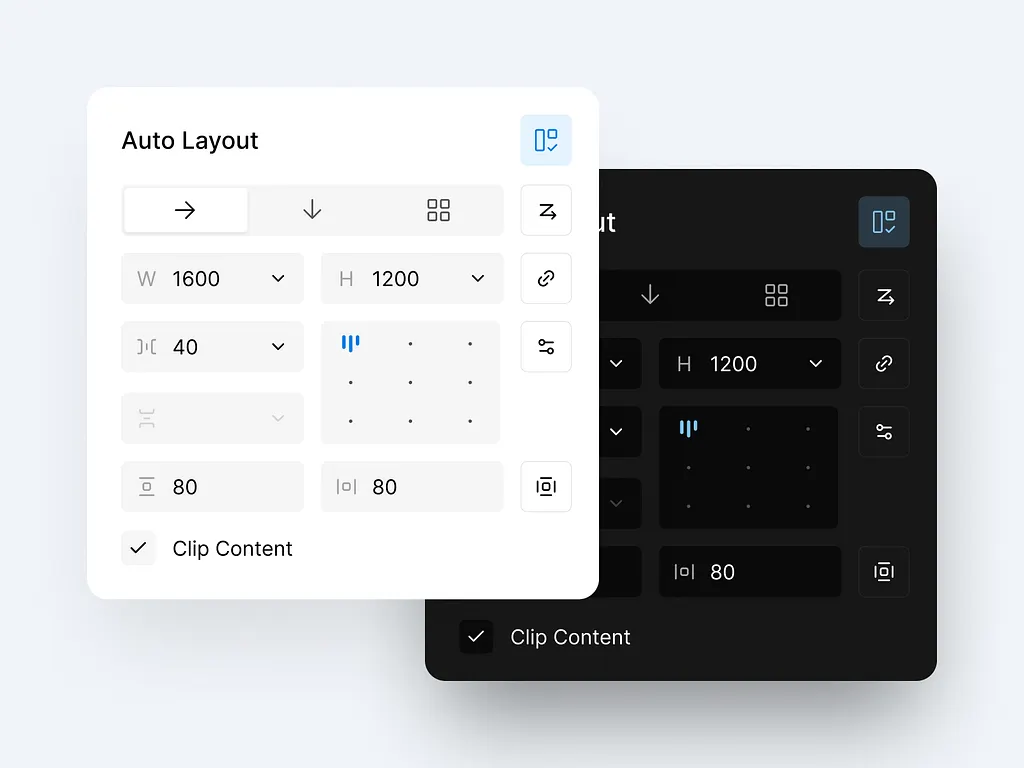
Auto Layout on Everything
This is the big one. Webflow’s official Figma integration only syncs layers that use auto layout, and auto layout is what turns into flexbox on the Webflow side. A frame without it either won’t sync or arrives as a layout that can’t adapt to different screens.
If you’re cleaning up an older file, Figma’s suggest auto layout feature can add it to a frame for you. Then check the spacing and alignment it chose.
Name Layers Like Classes
Every Figma layer name becomes a class in Webflow when you sync. Name layers the way a developer would: “hero-section,” “card-pricing,” “button-primary.” Pick one naming convention for the whole file and stick to it.
Variables for Every Token
Colors, font sizes, spacing, and radius values should all live in Figma variables, not as loose values on layers. The integration converts Figma variables into Webflow variables, with support for px, em, and rem units and a configurable base font size.
That means when the brand blue changes, it changes once, in both tools.
Components for Anything Repeated
Buttons, cards, nav bars, footers, testimonials. If it appears more than once, make it a component. Figma components sync as Webflow components, which is what makes the site easy to update after launch.
Sync With the Official Figma to Webflow Integration
Webflow’s integration comes in two parts: a plugin you run in Figma and an app you open inside the Webflow Designer. The plugin sends your work across. The app is where you choose what to import.
How the Sync Works
In the Figma plugin, there are separate tabs for layers, variables, and styles. Select what you want to send and click Sync to Webflow. Then open the Figma to Webflow app in the Webflow Designer, pick the recent sync, and choose which components, elements, variables, and classes to import.
Two practical tips. Webflow recommends syncing in batches of 100 items or fewer to keep things stable. And the plugin doesn’t currently work in Safari, so use Chrome or the Figma desktop app.
Start with variables, then styles, then components. That way your components arrive already pointing at the right tokens.
What Doesn’t Come Across
The sync is a strong head start, not a finished site. A synced layout gives you structure and styling, but it doesn’t give you a semantic page. Expect to set heading levels and section tags yourself in Webflow.
Prototype interactions and animations don’t carry over, so plan to rebuild them with Webflow’s own interactions. The same goes for hover and focus states shown as separate frames or variants. Check them after every sync rather than assuming they made it.
Finish the Build in Webflow
Once the sync is done, the real build starts. This is where a site goes from “looks like the design” to “works like a website.”
Fix the Structure for SEO and Accessibility
Set one H1 per page, use H2 and H3 in order, and wrap major blocks in section tags. Screen readers and search engines read this structure, even if visitors never see it. A page that only looks right is still broken for both.
Design the Breakpoints, Don’t Leave Them to Chance
Auto layout gets you most of the way, but tablet and mobile still need decisions. Should the three cards stack or scroll? Does the nav collapse? Those choices belong in the Figma file as separate frames, not as guesses made during the build.
Build CMS Templates for Real Content
Blog posts, case studies, and team pages usually live in the Webflow CMS. Design those templates with real content lengths in mind: a 90-character title, a missing image, a bio that runs three paragraphs. Placeholder text that’s always the perfect length hides problems until launch day.
What a Good Handoff Includes
Before a file goes to the build, we check that it has:
- Desktop, tablet, and mobile frames for every page template
- Hover, focus, empty, and error states for interactive components
- Notes on any animation, with timing and easing
- Real or realistic content, including the longest and shortest cases
- Exported assets and alt text for every meaningful image
It’s a short list. Skipping it is what turns a clean sync into a messy build.
Key Takeaways
- Most Figma to Webflow problems start in the Figma file, not in Webflow.
- Put auto layout on every frame you want to sync, because the integration skips layers without it.
- Name layers like classes, since every layer name becomes a Webflow class.
- Store colors, type, and spacing as Figma variables so they sync as Webflow variables.
- Sync variables first, then styles, then components, in batches of 100 or fewer.
- Rebuild interactions, set semantic tags, and design breakpoints yourself after the sync.
- Hand off every state, breakpoint, and realistic content length, not just the happy path.
Want your next Figma design built right the first time?
Book a call with Orizon 🚀
FAQ
How do I transfer a Figma design to Webflow?
Use Webflow’s official Figma to Webflow integration. Run the plugin in Figma to sync layers, variables, and styles, then open the Figma to Webflow app in the Webflow Designer to import them.
Is the Figma to Webflow plugin free?
Yes, the official plugin and app from Webflow are free to install. You’ll still need the right Webflow plan for the site you’re building.
Why won’t my Figma frame sync to Webflow?
The most common reason is missing auto layout. The integration only syncs layers that use it. Add auto layout to the frame and its children, then sync again.
Do Figma variables sync to Webflow?
Yes. Figma variables convert into Webflow variables, with support for px, em, and rem units and a configurable base font size.
Do Figma components become Webflow components?
Yes. Synced Figma components arrive as Webflow components, so you can update them once and see the change everywhere they’re used.
Do prototype animations transfer from Figma to Webflow?
No. Prototype interactions and animations need to be rebuilt with Webflow’s interactions. Add timing and easing notes in Figma so the build matches the design.
How should I name layers in Figma for Webflow?
Name them like CSS classes, because that’s what they become. Use clear, consistent names like “hero-section” or “button-primary” and avoid defaults like “Frame 2147.”
What’s the best order to sync a design system?
Start with variables, then styles, then components. That way components arrive already connected to the right tokens. For more on where Figma itself is heading, see our Figma Config 2026 recap.
Can Orizon handle our Figma to Webflow build?
Yes. Orizon designs in Figma and builds in Webflow, from design systems to CMS-driven marketing sites. Learn more about our UX design services or book a call with Orizon.
Header image: Photo by Gfx Hine / Dribbble – “Forma & Co. - Thoughtful Workspace Furniture E-commerce Website” (Shot #27631567).

Keep Reading
More from Orizon

Let's Talk
Design done right and fast by
people you can trust.